First Steps with Blazor Web App and Telerik UI
This article explains how to use the Telerik UI for Blazor components in a Blazor Web App project template that exists for .NET 8 and later. You will create a new application from scratch, learn how to add the UI for Blazor components to a project, and finally, add a UI component to a view.
This step-by-step tutorial starts with the basics and is suitable for first-time Blazor or Telerik component users. If you are already familiar with the Telerik license key, NuGet source, components, and Blazor in general, you may prefer the Telerik UI for Blazor Workflow Details article. It provides more setup options and suggests possible enhancements.
 New to Telerik UI for Blazor?Start Free Trial
Prerequisites
To successfully complete the steps in this tutorial:
- Install a supported .NET version.
- Create a Telerik user account if you haven't one.
- Activate a Telerik UI for Blazor trial if you don't have a commercial license.
Step 0: Set Up Telerik Development Environment
The fastest way to set up your Telerik development environment is to use the Telerik CLI .NET tool. Run the following commands in your preferred command shell (Visual Studio Terminal, cmd, PowerShell, Bash, macOS Terminal, or other):
-
Install Telerik CLI
SHdotnet tool install -g Telerik.CLI -
Run the Telerik CLI
setupcommand:SHtelerik setup
The setup command performs multiple actions at once to configure your Telerik development environment:
- Log in to your Telerik account.
- Download a Telerik license key that includes all your licenses and trials.
- Configure a Telerik NuGet package source.
- Install MCP servers.
Step 1: Create a New Project
To create a new Blazor app:
- Open your preferred IDE or run the
dotnet new.NET CLI command. - Use the Blazor Web App project template.
- Select the desired interactive render mode.
- Enable Global Interactivity location.
Telerik UI for Blazor requires interactive render mode. Using Global Interactivity location is highly recommended.
Step 2: Install the Telerik UI for Blazor Components
Add the Telerik.UI.for.Blazor NuGet package to every project that will use the Telerik Blazor UI components. Apps with global interactive Auto or WebAssembly render mode need the Telerik NuGet package in the Client project.
Step 3: Enable the Blazor UI Components
To enable the Telerik UI for Blazor components, you must add several client-side dependencies to the application, include the required @using statements, add the TelerikRootComponent component, and register the Telerik Blazor service.
3.1. Add the Telerik UI for Blazor Client Assets
-
Add the
telerik-blazor.jsfile to theApp.razorfile as a static asset.HTML<head> . . . <script src="_content/Telerik.UI.for.Blazor/js/telerik-blazor.js"></script> </head> -
Add a theme stylesheet as a static asset in the
App.razorfile.HTML<head> . . . <link rel="stylesheet" href="_content/Telerik.UI.for.Blazor/css/kendo-theme-default/all.css" /> </head>
3.2. Include @using Statements
Add the @using directives below in the ~/_Imports.razor file in all projects in which you installed the Telerik UI for Blazor NuGet package. This configures the projects to recognize the Telerik components in all files. You can register one or both icon namespaces, depending on the icon type you use.
_Imports.razor
@using Telerik.Blazor
@using Telerik.Blazor.Components
@using Telerik.SvgIcons
@using Telerik.FontIcons
3.3. Add the TelerikRootComponent
Use a single TelerikRootComponent component as a top-level component in the app.
The
TelerikRootComponentrequires interactive render mode. Layout components are interactive only in applications with Global Interactivity location. This section applies only to apps with Global interactivity. If your app is using Per page/component interactivity, then check Using TelerikRootComponent in apps with per component interactivity instead.
Add a <TelerikRootComponent> to the app layout file (by default, MainLayout.razor). Make sure that the TelerikRootComponent wraps all the content in the MainLayout.
MainLayout.razor
@inherits LayoutComponentBase

<TelerikRootComponent>
    @* existing MainLayout.razor content here *@
</TelerikRootComponent>
You can learn more about the TelerikRootComponent purpose and usage in its dedicated documentation.
3.4. Register the Telerik Blazor Service
In a Blazor Web App project with interactive render mode Server, you register services in the Program.cs file of your project.
For interactive render modes WebAssembly and Auto, register the service in the Program.cs file of both the server and client project.
Program.cs
// ...

var builder = WebApplication.CreateBuilder(args);

// ...

builder.Services.AddTelerikBlazor();

// ...

var app = builder.Build();
Now your Blazor Server project can use the Telerik UI for Blazor components.
Step 4: Add a Component to a View
The final step in this tutorial is to use a Telerik UI for Blazor component in a view and run it in the browser.
-
In
.../Pages/Home.razorin the server or client project, add aTelerikButtoncomponent.Home.razor
RAZOR<TelerikButton ThemeColor="@ThemeConstants.Button.ThemeColor.Primary" OnClick="@OnButtonClick">Say Hello</TelerikButton> <p>@HelloString</p> @code { private MarkupString HelloString { get; set; } private void OnButtonClick() { HelloString = new MarkupString($"Hello from <strong>Telerik UI for Blazor</strong> at {DateTime.Now.ToString("HH:mm:ss")}!" + "<br /> Now you can use C# to write front-end!"); } } -
Run the app in the browser. You should see something like this:
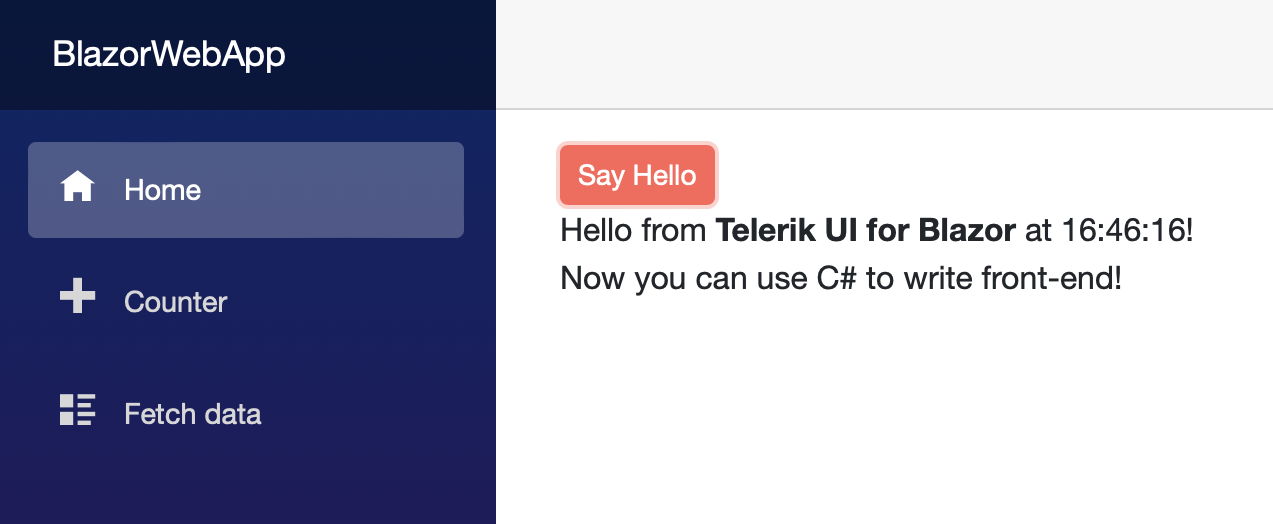
Well done! Now you have your first Telerik UI for Blazor component running in your Blazor app, showcasing the power of front-end development with Blazor.
Next Steps